Trace with with SystemView
- Segger SystemView : Real time OS Tracing
- SystemView user manual : Getting started, API reference,...
Steps :
Install SystemView
compile the target with the overlay
overlay-tracing.confand flash, resetSystemView Recorder configuration
J-Link,NRF52840_XXAA,SWD,4000 KHzSystemView
Start RecordingtheStop Recordingif SystemViewer keeps crashing try closing the window
CPU load
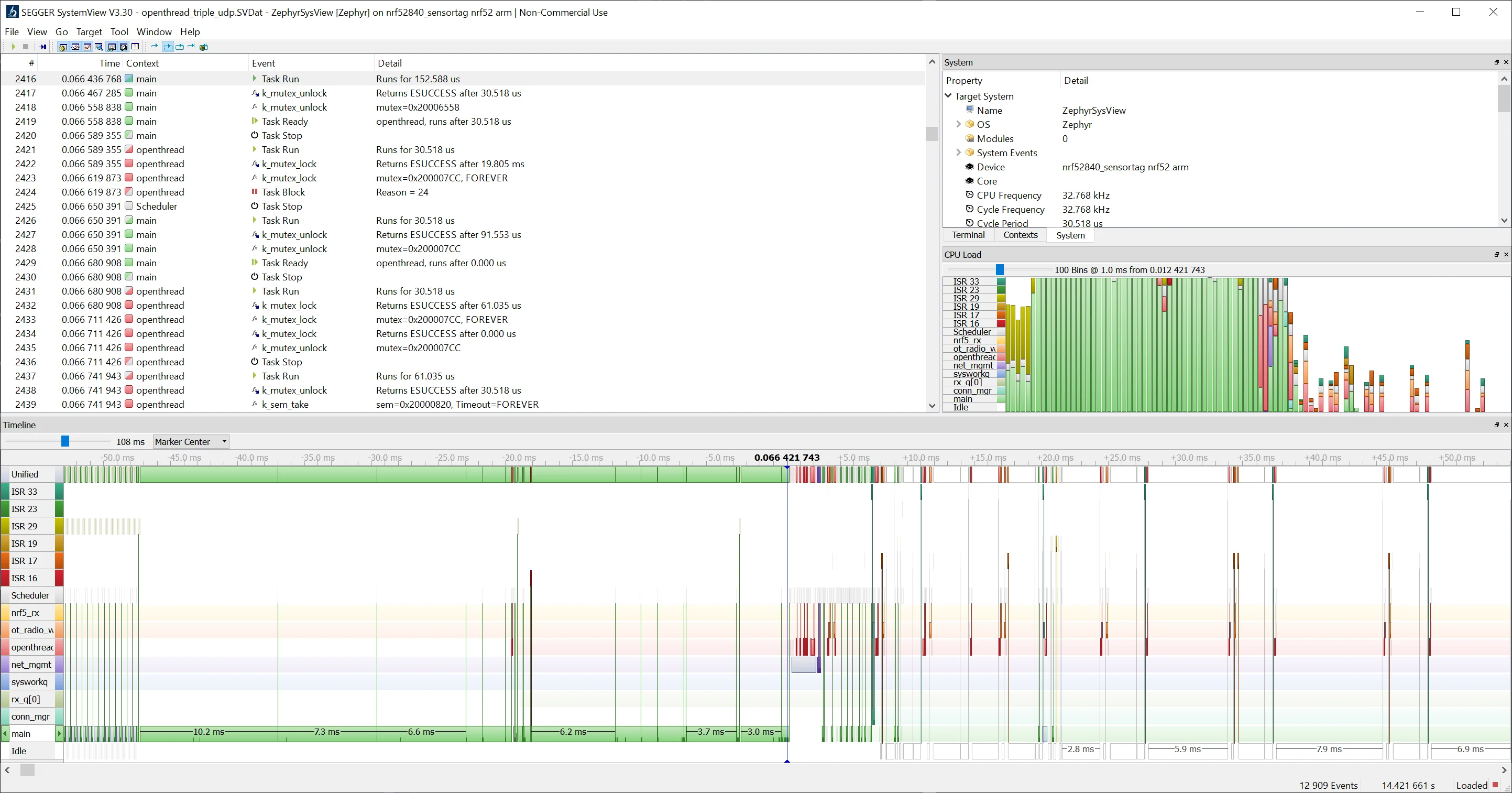
content of overlay-tracing.conf
#Tracing
CONFIG_TRACING=y
CONFIG_SEGGER_SYSTEMVIEW=y
CONFIG_THREAD_NAME=y
CONFIG_SEGGER_SYSTEMVIEW_BOOT_ENABLE=y
# careful adjustment as long as there is enough SRAM use it for tracing 128 KB
CONFIG_SEGGER_SYSVIEW_RTT_BUFFER_SIZE=131072
Hints
power on tracing : In case a power-on startup has to be traced, it is necessary to increase the target local RTT buffer size, because it keeps bauffering the tracing until the user has the time to start SystemView recording. For that, it is important to check how much free memory the system has, and then adjust the RTT buffer
ISR ID Identification : the function
sysview_get_interrupt()is usingSCB->ICSR VECTACTIVEnot the same as
IRQn_Typedefined inmodules\hal\nordic\nrfx\mdk\nrf52840.h
Debug with OZone
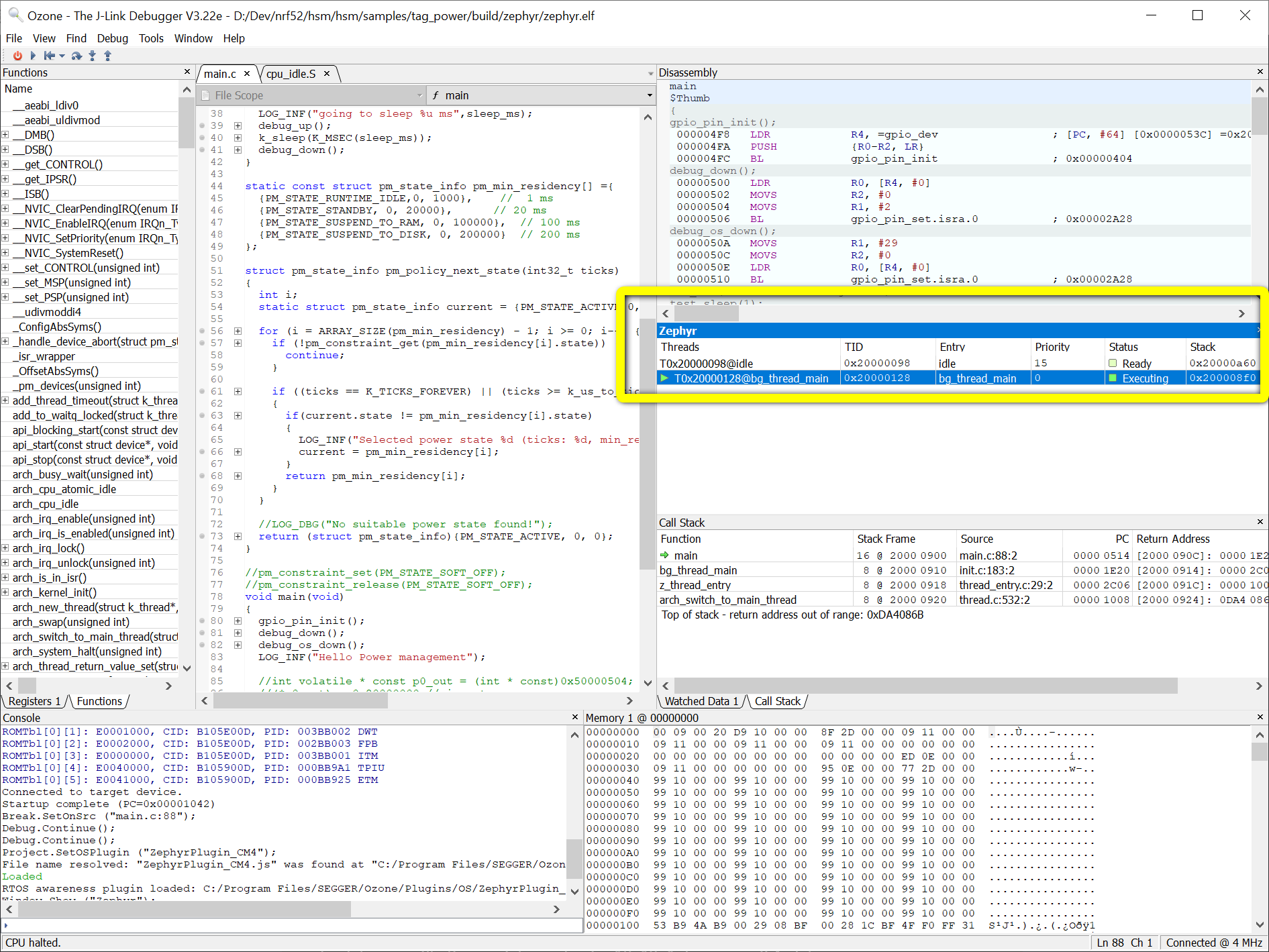
- Ozone : performance analyzer
- RTOS Awareness : debug an RTOS
Steps :
make sure to use Ozone version 3.22d or higher
in the new project wizard, make sure an svd file is selected e.g. from the Zephyr projecz
modules\hal\nordic\nrfx\mdk\nrf52840.svdFor a Segger j-link edu, select the Target interface SWD
compile with
CONFIG_DEBUG_THREAD_INFO=yselect the elf file of the Zephyr build
hsm/hsm/samples/tag_power/build/zephyr/zephyr.elfin the bottom left console type
Project.SetOSPlugin("ZephyrPlugin_CM4"). That will load the Zephyr RTOS awareness pluginyou should now be able to access the Zephyr debug window from the menu
Viewthen in theAdvancedsectionZephyr
Serial Debug
Log :
CONFIG_LOGcreates aloggingthread and enablesLOG_INF(),LOG_DBG(),... functionsneeds a backend e.g.
CONFIG_LOG_BACKEND_RTT,CONFIG_LOG_BACKEND_UART
Shell :
CONFIG_SHELLcreates ashell_xxxthread that enables an interactive command line e.g.rtt:~$ kernel threadsneeds a backend e.g.
CONFIG_SHELL_BACKEND_RTT,CONFIG_SHELL_BACKEND_SERIAL
shell command examples
>help
>kernel threads
>kernel stacks
>log enable dbg main
Windows Install
The details are in the link above, the summary of the step for installing on windows are
Installing
chocoInstalling
westdependencies withchocoinstalling
westwithpipthe retrieving the repo and building are performed through
westThe compiler toolchain as multiple options
Zephyr own SDK, not available on windows
GNU ARM Embedded : to be installed on a path without spaces
e.g. for a path "D:\tools\gnu_arm_embedded\9_2020-q2-update\bin\arm-none-eabi-gcc.exe" GNUARMEMB_TOOLCHAIN_PATH shall be set to D:\tools\gnu_arm_embedded\9_2020-q2-update
Linux Install
installing Zephyr with its own compiler toolchain
Zephyr SDK- install nRF Command Line tools
tar -xf nRFCommandLineTools10121Linuxamd64.tar.gz
sudo dpkg -i nRF-Command-Line-Tools_10_12_1_Linux-amd64.deb
Build and Flash
Testing blinky sample
add CONFIG_BOARD_HAS_NRF5_BOOTLOADER=n to prj.conf
tested version 2.5.99
cd ~/zephyrproject/zephyr/samples/basic/blinky
west build -p auto -b nrf52840dongle_nrf52840 -- -DCONF_FILE=prj.conf
west flash
nrfjprog -f nrf52 --reset
RTT config
required configuration to have logs running over the segger j-link RTT (log through the same SWD interface used for programming)
prj.conf
CONFIG_GPIO=y
CONFIG_SERIAL=n
CONFIG_BOARD_HAS_NRF5_BOOTLOADER=n

# Logging
CONFIG_LOG=y
CONFIG_LOG_BACKEND_RTT=y
CONFIG_LOG_BACKEND_UART=n
CONFIG_BOOT_BANNER=y
CONFIG_USE_SEGGER_RTT=y
CONFIG_CONSOLE=y
CONFIG_UART_CONSOLE=n
CONFIG_RTT_CONSOLE=y
main.c
#include <zephyr.h>
#include <logging/log.h>
LOG_MODULE_REGISTER(main, LOG_LEVEL_INF);
void main(void)
{
	LOG_INF("Starting");
	int count = 0;
	while (1) {
		LOG_INF("loop: %d",count++);
	}
}